ProjectFolder Help
ProjectFolder is a simple and effective way to optimise your quality management in your digital life. ProjectFolder creates consistent and customisable folder structures for your project, your team and yourself – automatically with a single click.
ProjectFolder is an app for Mac, iPad and iPhone and enables the creation of complex folder structures with extensively customised naming conventions through the use of freely definable presets.
On iOS, ProjectFolder offers a similar range of features to that on macOS and enables the effortless transfer of file structures that were previously almost unthinkable on that platform. It’s worth investing a bit of energy and brainpower at the start so that you can then simply stick to using ProjectFolder :)
To create folder structures, ProjectFolder uses simple presets that define folder layouts. Not only can any number of variables be used for folder names, but also date functions and numbering. The sophisticated Finder integration makes even the creation of the most complex structures a breeze. In heterogeneous network environments, the »sanitize« function is useful.
Downloading ProjectFolder from the App Store is free and starts a 14-day trial period with all PRO features. Once this period has expired, ProjectFolder can be purchased as the PRO version for macOS or as the STD version for iOS or macOS (one-off purchase, no subscription).
The ProjectFolder Preset Editor allows you to create a folder structure with a large number of folders and subfolders (max. 500). These can be moved or arranged as desired using drag and drop (nested within one another). Please note: The order of the folders is ultimately determined by the Finder settings; the display in the Editor is for clarity only, and the sorting may appear differently in the Finder. However, this can be controlled by adding a numerical prefix, for example.
In the Pro version of ProjectFolder, small file attachments of specific types can also be added to the folder structure, such as ReadMe files or spreadsheet templates. The maximum file size is 1 MB; only PDF, DOC, DOCX, XLS, XLSX, JPG, PNG, TXT, MD, and Pages or Numbers documents are supported.
Be careful when importing presets with attachments from the internet or unknown sources, as these may have been tampered with and contain malware. Do not trust unknown sources.
ProjectFolder therefore alerts you to this when importing presets with attachments and asks whether you wish to import the preset with or without attachments. Without attachments, ProjectFolder presets are completely harmless xml-plist files and cannot cause any harm. So, if in doubt, do without attachments when importing.
Variables are enclosed in {curly} brackets and are used in folder names. When applying a preset, you will be prompted for them in the dialogue box and they will be replaced by your input. You can use as many variables as you like, but you will find that here too: less is more. Variables cannot be used in preset names, but they can certainly be used in the names of file attachments.
The current date can be used automatically in the preset with a call such as {date:yy-mm-dd}. For the year, either yy (26) or yyyy (2026) can be used. Months and days are always two digits (mm or dd); they can also be output as text (DD or MM). The details can be combined as desired , e.g. {date:yymm} or {date:mmdd}. Hyphens or underscores are recommended as separators; invalid separators are deleted upon saving.
In addition, calendar weeks can also be output as numbers; {date:kw} yields 19, for example, whilst {date:KWkw} yields KW19. In combination, a complete date can therefore be output, e.g. {date:KWkw - dd. MM yyyy} becomes KW19 - 6 May 2026
The target date can be moved forward by any amount by adding a value, for example {date:yy-mm-dd+30} moves the date forward by 30 days when outputted.
In this way, time periods can be automatically specified, or deadlines defined. {date:kw+51 yyyy+10-mm+11-dd+30}, as an unrealistic date, would catapult the output roughly 12 years into the future; combinations are therefore possible and accumulate. However, contradictory expressions such as {date:DD+7 yy-mm-dd+5} are not evaluated.
Numbering is a powerful feature. It can be used in a preset with either a global value (GLNR) and/or a sequential number {LNR:123}.
The numerical value of the Global Sequential Number is set exclusively in the settings field (GLNR). Every preset that uses GLNR increments the value by one digit (+1) when used. The value visible in the settings field is the one that will be used the next time the preset is used with {GLNR}. If something has gone wrong, it can be corrected here. For testing purposes, the function can also be temporarily disabled
The Sequential Numbering can only be used within the preset. {LNR:123} is a variable and the number that will be used the next time the preset is used. When the preset is executed, the value is automatically incremented by one digit (+1). LNR values can only be changed within the relevant preset. It is sufficient to adjust the top value; the other values in the preset are automatically adjusted to match this when saved.
The PRO version of ProjectFolder comes with active iCloud synchronisation as a default setting. This means that all presets and settings from the Pro version are mirrored via iCloud to other macOS or iOS devices (iPad and iPhone) and are available there.
This synchronisation can be disabled in the settings if desired. In this case, all devices linked to the same Apple ID account with purchased apps will now have PRO features, but each will use its own presets and settings.
Purchasing the PRO version of the ProjectFolder macOS app offers numerous benefits. In addition to the Pro features, this version also includes Family Sharing and, furthermore, upgrades any STD version purchased on all iPads or iPhones linked to the same Apple ID account to PRO.
With iCloud Sync, all presets and settings from the Pro version are mirrored via iCloud to other macOS or iOS devices (iPad and iPhone) and are available there. iCloud Sync can be disabled in the settings. In this case, all devices have PRO features but use their own presets and settings.
The STD version is limited to 10 presets, each of which may contain a maximum of 10 folders and subfolders. That may not sound like much, but in practice it is perfectly adequate for many situations. ProjectFolder for iPhone and iPad is only available as the STD version.
Importing existing folder structures via drag-and-drop is another very powerful feature of ProjectFolder. It allows you to import an entire folder structure (max. depth 500); simply drag the parent directory into the editor window. In this way, pre-prepared folder sets with variables can also be imported from the Finder.
Please note that {date:yyyy} or {LNR:123} must be converted to {date=yyyy} and {LNR=123}, as the Finder does not allow colons in the naming convention. ProjectFolder automatically replaces these during import.
Presets can be dragged and dropped into the Finder and saved there. Conversely, importing presets is very simple: double-clicking or dragging and dropping a preset into the editor window on the Mac adds the preset to the preset list.
A double-tap on the iOS device does the same. Incidentally, a directory can be transferred to ProjectFolder via the “Share” function and imported in the same way.
You can also edit folder structures using drag and drop on the iPad and iPhone. Just like macOS, iOS allows you to move presets, folders and attachments using the hamburger menu.
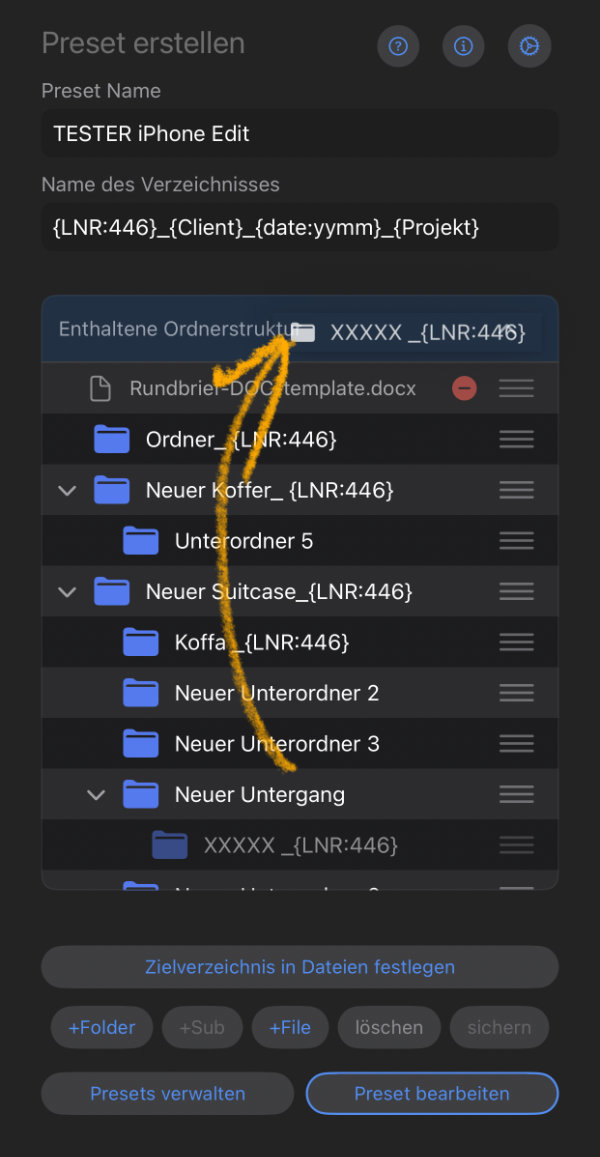 However, the technique differs from that used in macOS, which is why a different approach is required for moving elements to the root level of the preset. All elements that are to end up at the top level (coming from a subdirectory) must be dragged to the header of the folder list.
Consequently, folders are added below the root level, and attachments above.
This means that on iOS, too, the order of the folder list can be sorted as desired, albeit not quite as conveniently as on macOS. However, the sorting of a folder set created with ProjectFolder always follows the respective settings applicable there in the Finder or Files app. Consequently, strictly required orders of elements can really only be achieved with numerical prefixes, for example, and even then only under normal conditions.
Ultimately, the order of the folder list in ProjectFolder is merely a guide for editing, nothing more. Please bear this in mind.
ProjectFolder is designed and built to make good organisation even better and shareable. ProjectFolder presets can be shared via iMessage, Mail or AirDrop. Please note that presets created with a PRO version of ProjectFolder may contain complex structures and attachments which, whilst readable by a STD version, cannot be imported in full.
When importing such a preset, the STD version will indicate its limitations and import only parts of it. The preset itself remains intact.
ProjectFolder offers a total of four ways to apply a preset on the Mac.
- Presets can be launched directly from the editor window
- All presets are also available via the Finder menu
- The Dock icon menu (right-click) provides access to the presets
- The context menu (right-click) provides the full range of ProjectFolder functions on the Finder desktop and in Finder windows. .
The Editor, the Preset folder and the Backup folder can also be accessed via all menus.
ProjectFolder can effectively use all the file systems on your Mac that you would normally use in Finder, including SMB server volumes, external drives and USB sticks. Seamless integration with services such as iCloud, Nextcloud, Dropbox, OneDrive etc. works perfect in Finder..
Unfortunately, for iPad and iPhone, it is currently not possible to securely create a folder structure within directories of file providers such as Nextcloud, Dropbox, OneDrive etc. is currently not possible on iOS. On iOS, use iCloud or an external USB drive instead. However, the macOS version of ProjectFolder works seamlessly with Nextcloud and similar services.
ProjectFolder automatically performs daily backups of presets and settings. The STD version retains a maximum of 5 backups, the PRO version 20 backups. A restore can be initiated via the settings window. To do this, a backup for the restore must be selected in the backup folder.
Warning: The restore will overwrite all existing presets and settings! If, for example, you have created new presets since the last backup, you should save these in the Finder via drag-and-drop before performing the restore. This way, nothing will be lost.
Note:
ProjectFolder cannot map every type of folder structure, but only those found on macOS and iOS.